Welcome to instaNDT Documention page
Getting Started with instaNDT
instaNDT can be run either in AWS, Azure or fully on-premise. So, refer to the relevant documentation on this page to deploy it in your infrastructure.
AWS
Azure
On-Premise
Infrastructure
AWS
instaNDT Architecture in AWS
Quick Architecture Overview

Detailed Overview
ECS
instaNDT will be running inside the ECS cluster as a service and the containers will be running inside autoscaled EC2 instances. There are 2 type of ECS services deployed namely frontend and backend. And there is an ECS task that is deployed for database migration. Every time there is a database migration task, we need to trigger the migration task (either manually or through automation script) and once completed, it’ll quit the container successfully.
Customers will also be given an access token (that should be stored in their respective parameter store or secrets manager). This access token is used to authenticate the specific Gitlab repo that contains the docker images to pull. This access token needs to be referenced in ECR (if the container images are stored in there) or when creating the ECS task definition, so that it could pull the docker image from GitLab without any authentication issues.
CloudFront + WAF
To reduce latency for users accessing from different regions, we enabled CloudFront which is the CDN and for the firewall, we have configured WAF's web ACL rule.
RDS
For the database, we are using RDS with high availability (multi AZ). For the initial stage, d3.t3.micro instance can be used but for higher workload, we can move to db.m5.large etc.
S3
Standard S3 bucket is where the uploaded DICOM images will be stored. This S3 bucket is private to prevent public access by unauthenticated users.
Secrets Manager
Secrets Manager is needed to store the GitLab access token as mentioned before. Any other credentials, secret or certificates will also be stored here. If necessary, secret rotations can be enabled in the future, for let’s say database connection, as Secrets Manager provides the option to rotate them with very few steps (either automatically or using Lambda).
SSM
Sessions Manager
Instead of using ssh to bastion host, we opted for Sessions Manager to connect to bastion host which has only private IP. Either AWS UI or cli can be used to connect to the bastion host(s).
Parameter Store
There is only one parameter as of now in Parameter Store, which indicates the app version to be deployed. ECS task definition in tofu will refer to this variable before deploying the container.
AWS Infrastructure Automation
IaC with OpenTofu
We will be automating most of the infrastructure provisioning with OpenTofu. Refer to About OpenTofu and Automation with OpenTofu for more information.
Note
Although we were able to automate most of the tasks with OpenTofu, there are still some manual tasks that needs to be handled. Refer to the manual task section in AWS Setup Guide
OpenTofu Modules for AWS
Coming soon...
AWS Setup Guide
Some of these steps are focused on running on a local GNU/Linux environment, but most of it is also relevant to Windows OS as well.
Steps to automate AWS infrastructure
1. Get OpenTofu CLI
Retrieve the cli from GitHub release page by running:
Verity that tofu is detected by running:
which will output the tofu version v1.9.0.
2. Clone git repo
Clone the git repo that has been communicated to you using the specific GitLab access token:
3. Set Up Tofu Code
3.1 Use terraform.tfvars
Copy the existing terraform.tfvars.example to terraform.tfvars and make changes to the variables in that file. Make sure to modify the GitLab user and GitLab access token there with those credentials provided to you. Basically, you'll have 2 sets of tokens. This access token is separate from the other token mentioned in the previous section which is used to clone the repo. The current token is used to pull the containers from the GitLab registry.
3.2 Tofu Init
Before initializing tofu, make sure to login to your AWS SSO through the CLI:
and setup the sso config locally. And finally, initialize tofu with:
3.3 Tofu Plan / Apply
To view the resources that will be created, run:
and once that is completed, you should apply the changes
which will actually create the resources in AWS.
Manual Steps
These manual steps can be done either through AWS UI or cli. However for now, we will cover AWS UI only.
1. LetsEncrypt Initial Certs
For the very first time, we need to run certbot command to get a LetsEncrypt Cert, which is used by "internal" loadbalancer in private network
This will also create a new account for you, gather the private key for the account and save in the secrets manager (mentioned below)
2. Credentials in Secrets Manager
There are 2 secrets that needs to manually updated the very first time it is deployed through tofu, namely:
- instandt-letsencrypt-account-<random-id>
- ecr-pullthroughcache/dndt-gitlab-<random-id>
For instandt-letsencrypt-account-<random-id>, get the private key from the previous step, initial LetsEncrypt cert and store it in this secret.
For ecr-pullthroughcache/dndt-gitlab-<random-id>, this token is used to access the gitlab container registry. This token is not the same as the token used to clone the template infrastructure-as-code repository.
3. App Version in Parameter Store
Make changes to app version parameter only on the first time you deploy this resource, on later deploys, tofu will take care of updating this parameter. This will be the app version that ECS Task Definition from tofu uses to deploy the application (frontend, backend and db migration images).
Azure
instaNDT Architecture in Azure
Quick Architecture Overview
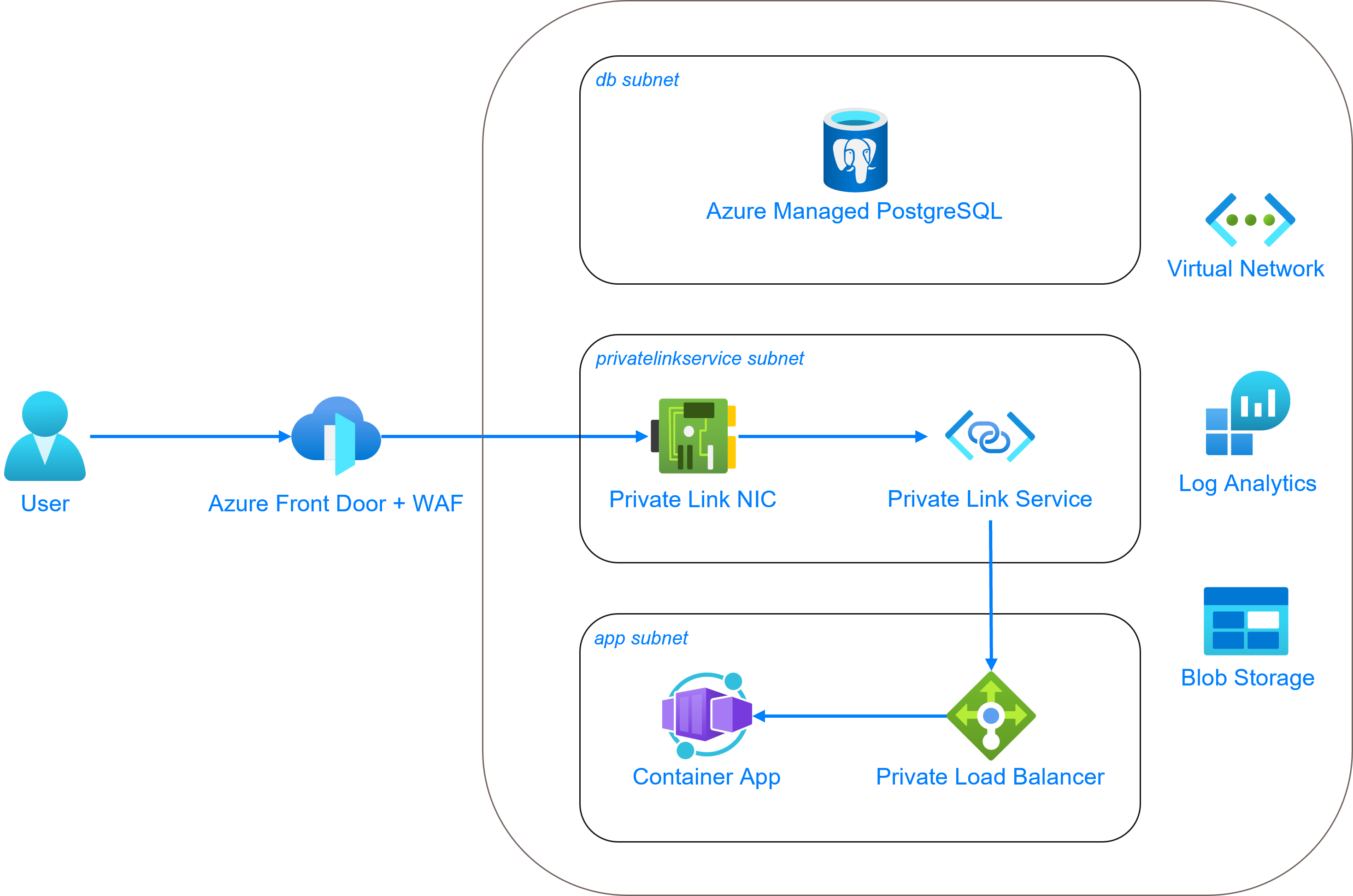
Detailed Overview
Container App
instaNDT will be running inside the Azure Container Environment inside a private subnet. There are 2 container apps deployed namely frontend and backend. And there is a container app job that is deployed for database migration. Every time there is a database migration task, we need to trigger the job and once completed, it’ll quit the container successfully.
Customers will also be given an access token (that should be stored in their respective key vault). This access token is used to authenticate the specific Gitlab repo that contains the docker images to pull. This access token needs to be referenced when creating the container app, so that it could pull the docker image from GitLab without any authentication issues.
CDN / FrontDoor
Each of the container app has ingress exposed internal which means that it would not be directly exposed to public network (a.k.a Internet). We will be using the Azure FrontDoor to both expose the frontend (and backend) and to be used as a firewall (WAF) to protect against unauthorized access to the resources in Azure. But to be able to link the FrontDoor and the container app’s load balancer, we need to have a private link (service) enabled and running in its own subnet.
DNS Zone
Once CDN is configured, it’s recommended to configure DNS zone and the necessary records to point to the CDN URL for ease of use.
Database
Azure (managed) database for postgreSQL instance tiers:
- Burstable (1-20 vCores) - Best for workloads that don’t need the full CPU continuously
- General Purpose (2-96 vCores) - Balanced configuration for most common workloads
- Memory Optimized (2-96 vCores) - Best for workloads that require a high memory to CPU ratio
We are currently using General Purpose instances for database for more highly available (and redundant) instance, especially in production. We can avoid memory optimized instances as we don’t have a heavy workload for database. And to run a smaller instance in non-production environment, Burstable instance is more suitable.
As always, the database needs to be in its own subnet and needs to be accessed through the private FQDN.
Blob Storage
A storage account is created, and a container (equivalent of bucket in AWS) is where the uploaded DICOM images will be stored. This blob storage is private as well to prevent public access by unauthenticated user.
For the container app to access (including download, upload, etc.) the items in the blob storage, we have created a user-assigned identity (UAI) that will be attached to the container app to assume when accessing container (bucket) in the blob storage.
Key Vault
Key vault is needed to store the GitLab access token as mentioned before. Any other credentials, secret or certificates will also be stored here. If necessary, secret rotations can be enabled in the future for let’s say database connection as key vault provides the option to rotate them with very few steps.
Entra ID
Microsoft Entra ID (previously Microsoft AD) is cloud-based identity and access management (IAM) and offers authentication and authorization services to various Microsoft services through SSO.
We should enable Entra ID to be used as one of the sign-in option for instaNDT. It could be managed in the same resource group or if there is already a centrally managed Entra ID, we could use that too. After setting up Entra ID for instaNDT, it will generate a tenant ID and client ID strings that we need to inject into the environment variables of container app.
Azure Infrastructure Automation
IaC with OpenTofu
We will be automating most of the infrastructure provisioning with OpenTofu. Refer to About OpenTofu and Automation with OpenTofu for more information.
Note
Although we were able to automate most of the tasks with OpenTofu, there are still some manual tasks that needs to be handled. Refer to the manual task section in Azure Setup Guide
OpenTofu Modules for Azure
Coming soon...
Creation of Entra ID
Note
The creation of Active Directory (or known as Entra ID) is not covered in this module for now. We will look into that in the future. But if you'd like to automate it, take a look at this azuread provider. This can be implemented in OpenTofu as well.
Azure Setup Guide
Some of these steps are focused on running on a local GNU/Linux environment, but most of it is also relevant to Windows OS as well.
Prerequisites
Create Microsoft Entra ID App Integration
Create a new app integration for instaNDT in Microsoft Entra ID. Take note of the created entra_tenant_id and entra_client_id values displayed on the page, they are required for the terraform.tfvars file later.
Azure Infrastructure Setup
1. Get OpenTofu CLI
Retrieve the cli from GitHub release page by running:
Verity that tofu is detected by running:
which will output the tofu version v1.9.0.
2. Clone git repo
Clone the git repo that has been communicated to you using the specific GitLab access token:
git clone https://<username>:<access-token>@gitlab.com/duerr-ndt/pacs/external/iac-instandt-azure.git
3. Log in to Azure
Log in to your Azure subscription through the CLI:
Take note of the subscription ID, it will need to be replaced in the terraform.tfvars file later.
4. Set Up Tofu Code
4.1 Populate terraform.tfvars variables
Copy the existing terraform.tfvars.example to terraform.tfvars and make changes to the variables in that file.
Take special note of the following variables:
app_version- This is the version of instaNDT app that will be deployed. When a new version of the app is released, theapp_versionvariable interraform.tfvarsneeds to be updated, and the apply command must be rerunazure_subscription_id- Listed after logging in to azure either through UI or CLIdatabase_ha_mode- Refer to the Microsoft documentation here. Take note that not all regions support cross-zone redundancy (ZoneRedundant) or same-zone redundancy (SameZone)entra_client_id- Client ID generated from creating the app integration for instaNDT in Microsoft Tenant IDentra_tenant_id- Tenant ID generated from creating the app integration for instaNDT in Microsoft Tenant IDgitlab_registry_username- This username is used to access the gitlab container registry. This username is not the same as the username used to clone the template infrastructure-as-code repositorygitlab_registry_token- This token is used to access the gitlab container registry. This token is not the same as the token used to clone the template infrastructure-as-code repository
4.2 Tofu Init
Initialize tofu with the following command:
4.3 Tofu Plan / Apply
To view the resources that will be created, run:
and once that is completed, apply the changes:
which will actually create the resources in Azure.
Manual Steps
DNS Record
If you've registered with your DNS registrar other than Azure, add or update the domain's subdomain NS record to point to the DNS servers mentioned in the the created DNS zone. These can be found in the azure UI via DNS Zones > <your.custom.domain> > Overview.
On-Premise
On-Premise Setup Guide
Container Runtime Engine
We distribute the images from docker build step which generates the final container images for frontend, backend and db migration. Although they are OCI-compliant images, we have only tested with docker container runtime. Which means that it might be possible to use these images with other container runtimes (containerd, etc.) but they were not tested, so we can't guarantee that it would run without issue on those container runtimes.
This documentation contains docker cli, assuming that you are using docker engine.
Environment Variables
-
For the frontend container, we need these variables to be set:
Variable Description CI_ENVIRONMENT_SLUG Current environment, mainly used for logging DEFAULT_STORAGE_SIZE_LIMIT_IN_BYTES Default storage size limit for storing the uploaded images (in bytes) JWT_PAT_SECRET_KEY Secret key to encode and decode JWT personal access token JWT_SECRET_KEY Secret key to encode and decode JWT auth access token ORIGIN Origin URL of the application PUBLIC_COMMIT_HASH Commit hash used to build the application PUBLIC_COOKIE_DOMAIN Cookie domain of the application. Allows for different configuration of domain names, for example subdomains PUBLIC_ENDPOINT URL of the app's backend endpoint PUBLIC_INTERNAL_ENDPOINT Internal (private) URL of the app's backend endpoint. This application uses a backend for frontend architecture and SSR, meaning that the frontend has it's own backend. This URL points the backend of the frontend to the API backend when in the private network. PUBLIC_MAX_FILE_UPLOAD_SIZE_MiB Max file size allowed to upload (in MiB) PUBLIC_VERSION_STRING Version string shown for frontend and backend USE_GRAFANA_LOKI_LOGGER Set the flag to use Grafana Loki for logging -
And for backend container(s), we need these variables to be set:
Variable Description CI_ENVIRONMENT_SLUG Current environment, mainly used for logging DEFAULT_STORAGE_SIZE_LIMIT_IN_BYTES Default storage size limit for storing the uploaded images (in bytes) EMAIL_SENDER Source email address for sending out email EMAIL_TOKEN_EXPIRY_DURATION_SECS Duration of validity of any tokens sent by email JWT_PAT_SECRET_KEY Secret key to decode JWT personal access token JWT_SECRET_KEY Secret key to decode JWT auth access token ORIGIN Origin URL of the application POSTGRES_CONNECTION_STRING Connection string for the app to connect to the database in the format of Server=<db-instance-hostname-or-ip>;Database=<db-name>;Port=<db-port>;Userid=<db-user>;Password=<db-password>PUBLIC_COMMIT_HASH Commit hash used to build the application PUBLIC_COOKIE_DOMAIN Cookie domain of the application. Allows for different configuration of domain names, for example subdomains PUBLIC_MAX_FILE_UPLOAD_SIZE_MiB Max file size allowed to upload (in MiB) PUBLIC_VERSION_STRING Version string shown for frontend and backend S3_BUCKET If STORAGE_MODEis s3, then this points to the s3 bucket to store the uploaded filesSTORAGE_MODE Set the storage to either s3,local(filesystem) orazure(blob storage)USE_GRAFANA_LOKI_LOGGER Set the flag to use Grafana Loki for logging VERIFY_EMAIL_TOKEN_EXPIRY_DURATION_SECS Duration of validity of email verification token -
For the migration container image, set the following variables:
Variable Description POSTGRES_HOST Hostname or IP address of the database instance POSTGRES_PASSWORD Password to connect to the database instance POSTGRES_USERNAME Username to connect to the database instance
Start The Container
You can either use simple docker command to run the frontend, backend and migration containers and pass the environment variables, or write your own docker-compose.yml (refer to this doc) and use docker compose cli
Automation
About OpenTofu
OpenTofu is an OSS tool for building, changing, and versioning infrastructure safely and efficiently. OpenTofu can manage existing and popular service providers (AWS, Azure, Google Cloud, etc.) as well as custom in-house solutions.
The key features of OpenTofu are:
- Infrastructure as Code: Infrastructure is described using a high-level configuration syntax. This allows a blueprint of your datacenter to be versioned and treated as you would any other code. Additionally, infrastructure can be shared and re-used.
- Execution Plans: OpenTofu has a "planning" step where it generates an execution plan. The execution plan shows what OpenTofu will do when you call apply. This lets you avoid any surprises when OpenTofu manipulates infrastructure.
- Resource Graph: OpenTofu builds a graph of all your resources, and parallelizes the creation and modification of any non-dependent resources. Because of this, OpenTofu builds infrastructure as efficiently as possible, and operators get insight into dependencies in their infrastructure.
- Change Automation: Complex changesets can be applied to your infrastructure with minimal human interaction. With the previously mentioned execution plan and resource graph, you know exactly what OpenTofu will change and in what order, avoiding many possible human errors.
Automation with OpenTofu
OpenTofu Features
Backend for state and lock
The backend defines where OpenTofu stores its state data files. And some of the backend types support locking of the state file as well to avoid multiple process (or multiple people) making changes to the state file at the same time. Available backends are listed on the OpenTofu documentation
OpenTofu CLI
Some of the most used tofu commands are listed below.
Init
Plan
To save the output of the plan command:
Apply
For auto approval:
If the outplan of the plan command was previously saved, it can be passed to the apply command:
Destroy
To destroy/remove all the provisioned resources:
Changelogs
API Versions
API Versions
This document serves as a reference for all API versions. Please refer to the specific version documentation for details.
Version History:
API Version 2.0
Breaking Changes in Version 2.0
- API Update: The API has been upgraded to Version 2.
- Route: GET
/api/v2/{org-slug}/media/history/info - The response for this route has been updated to include version information for each
MediaHistoryInfoitem.- The oldest media now has version
1, - The second oldest has version
2, and so on.
- The oldest media now has version
- Fix bug where project ID is used instead of the folder ID to retrieve media history.
- Change fetching media history by using folder ID instead of project ID. Example: From
/api/v1/{org-slug}/media/history/info?project={projectId}to/api/v2/{org-slug}/media/history/info?folder-id={folderId} - Route: DELETE
/api/v2/{org-slug}/projects?project={projectId} - Delete projects endpoint no longer has a request body. It has been changed to use a query param instead.