Folders
Folders allow you to organize media within a project. A project can contain multiple folders, and each folder can contain additional subfolders, allowing you to create a hierarchical directory structure that suits your workflow.
Both DICOM and non-DICOM media can be stored directly within a folder.
Sharing Folders
Folders can be shared with both instaNDT users and external users. Permissions are applied at the folder level, allowing you to control who can view, create, delete, and manage content within a specific folder.
To share a folder:
- Select the folder.
- Click the ✔ (Select) icon.
- Click the Share icon from the action menu.
- Enter the email address of the user you want to share the folder with.
- Configure the user's permissions.
- Save the changes.
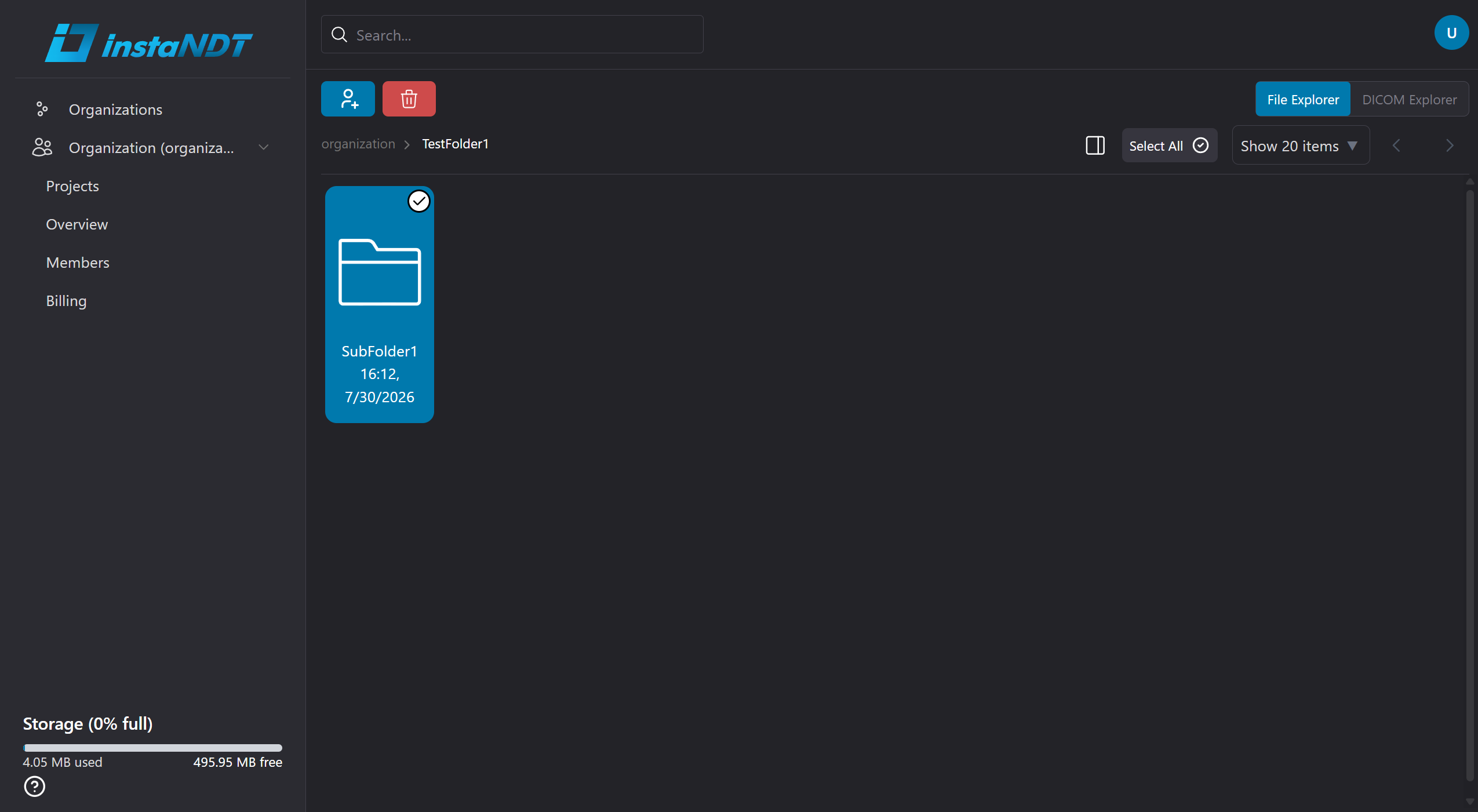
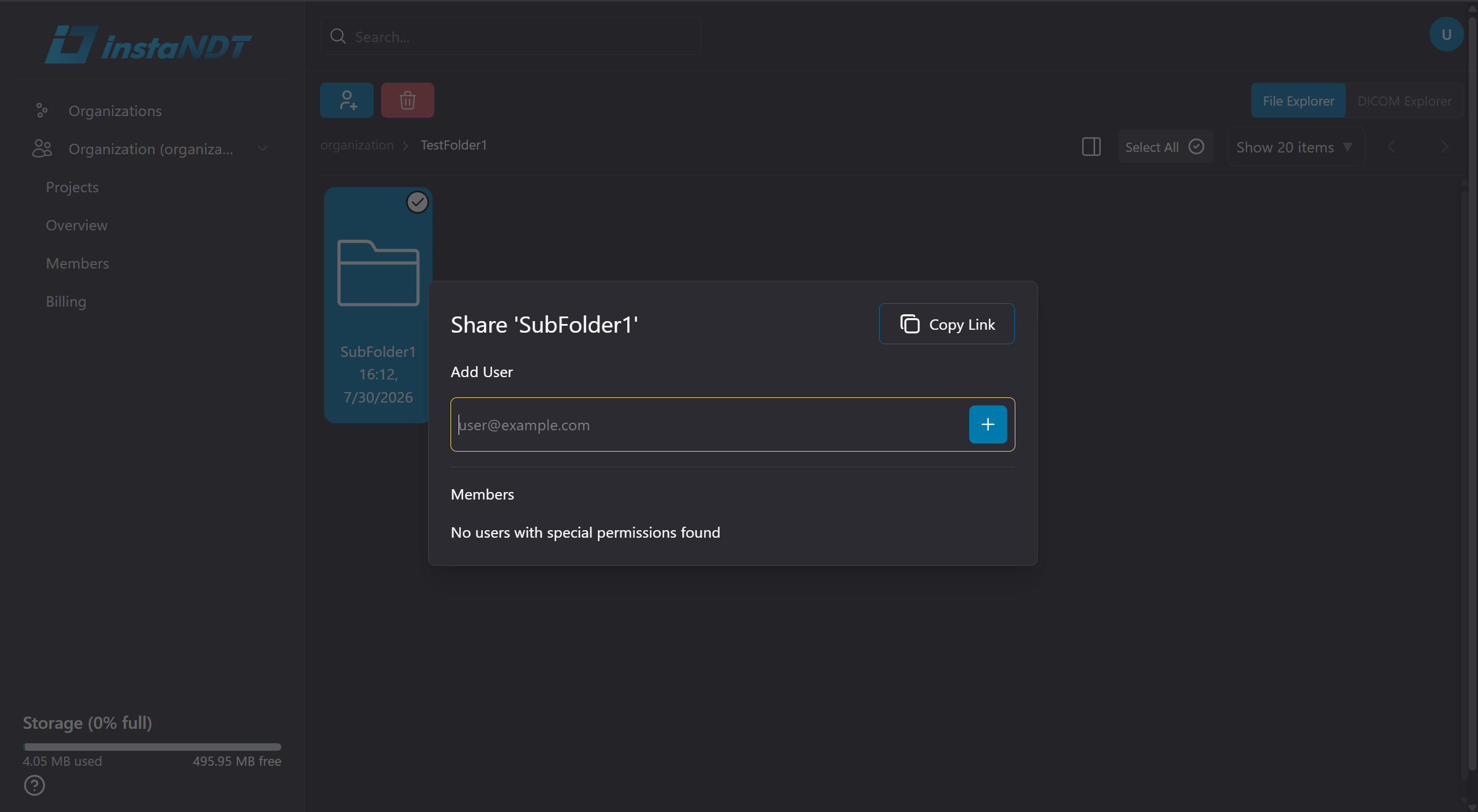
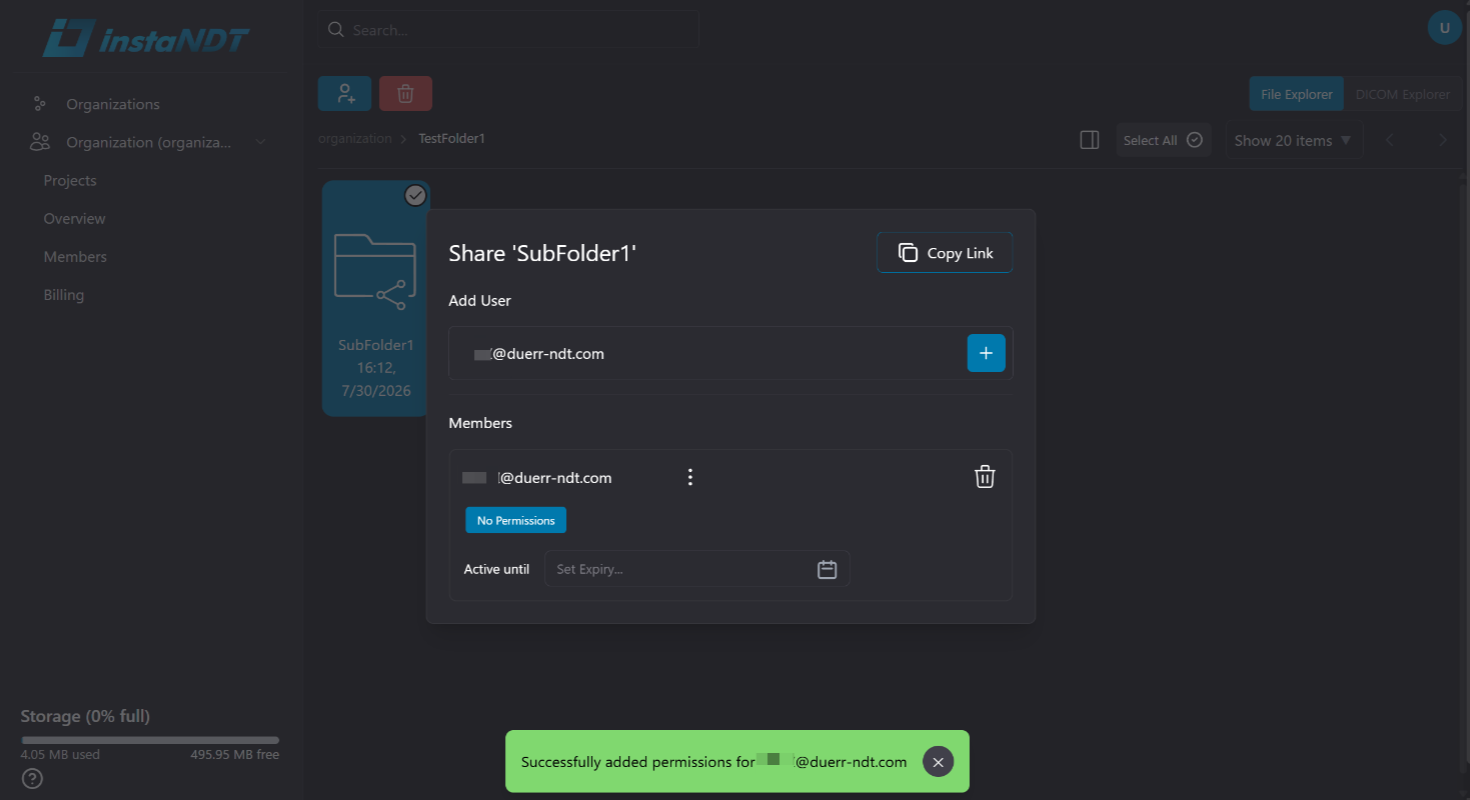
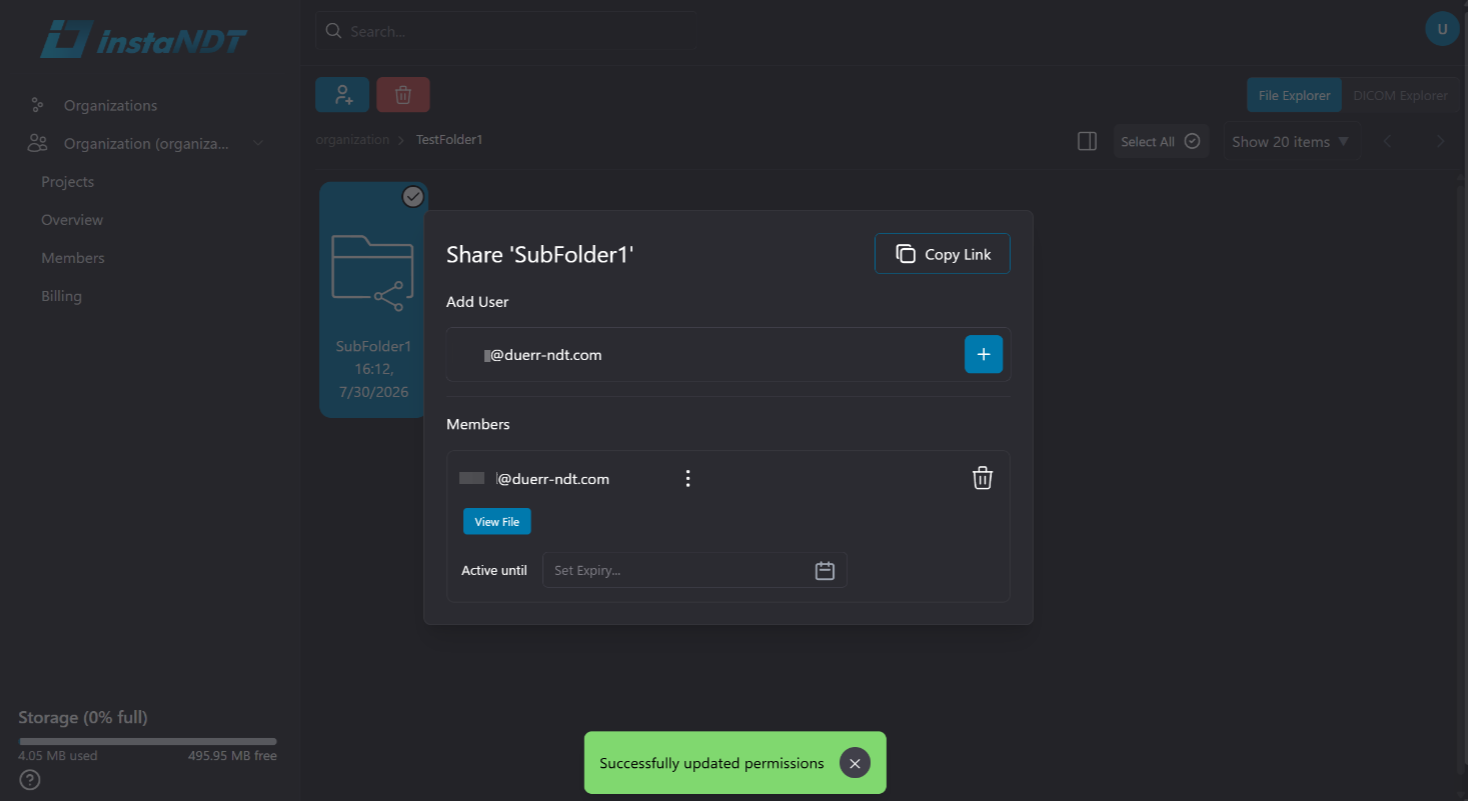
Figures 1–4. Sharing a folder and assigning View File permission to a user.
By default, newly added users are assigned No Permissions.
Folder Permissions
The following permissions can be assigned to each user for a shared folder.
| Permission | Allows the user to |
|---|---|
| View File | View the folder and all media contained within it. |
| Create File | Upload media and create subfolders within the folder. |
| Delete File | Delete media and subfolders within the folder. |
| View Project Members | View users who have access to the folder. |
| Add Project Members | Share the folder with additional users. |
| Edit Project Permissions | Modify permissions for users who have access to the folder. |
| Remove Folder Members | Remove users from the folder. |
Note: Folder permissions only apply to the selected folder. Users can have different permissions for different folders within the same project.
No Permissions
A user assigned No Permissions cannot access the folder, even if they have broader permissions elsewhere in the organization or project.
For example:
- A user has View File permission at the organization level.
- The same user is assigned No Permissions for TestFolder1.
In this scenario, the user cannot view or access TestFolder1 or any media contained within it.
This behavior also applies to users who have not yet registered with instaNDT.
Sharing with External Users
Folders can be shared with users who do not have an instaNDT account.
After entering the user's email address in the Share dialog:
- Copy the sharing link from the upper-right corner of the dialog.
- Send the link to the external user.
- The user opens the link and enters the same email address that the folder was shared with.
- A one-time verification code is sent to that email address.
- After entering the verification code, the user is granted access to the shared folder according to the permissions you assigned.
This verification process ensures that only the intended recipient can access the shared folder.
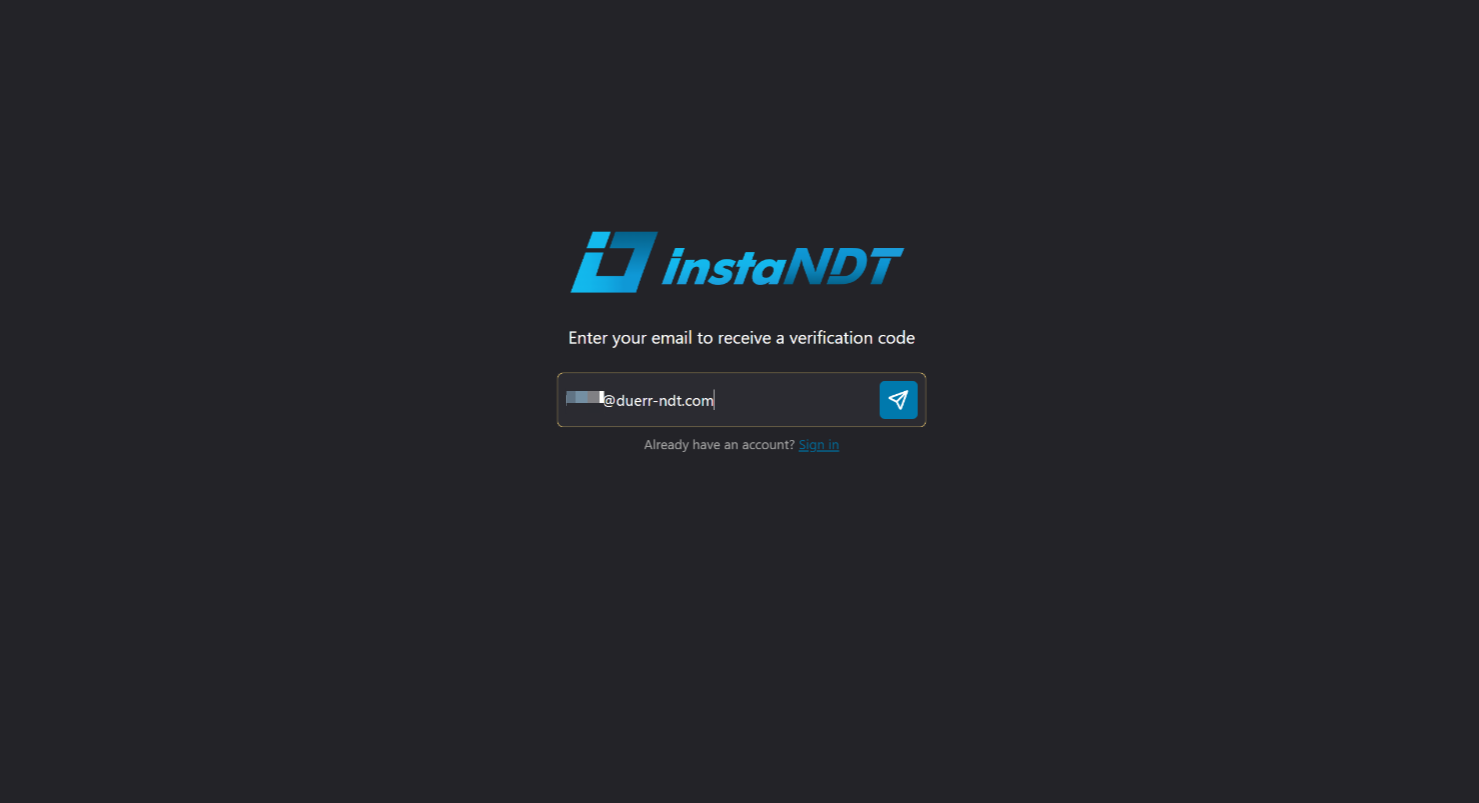
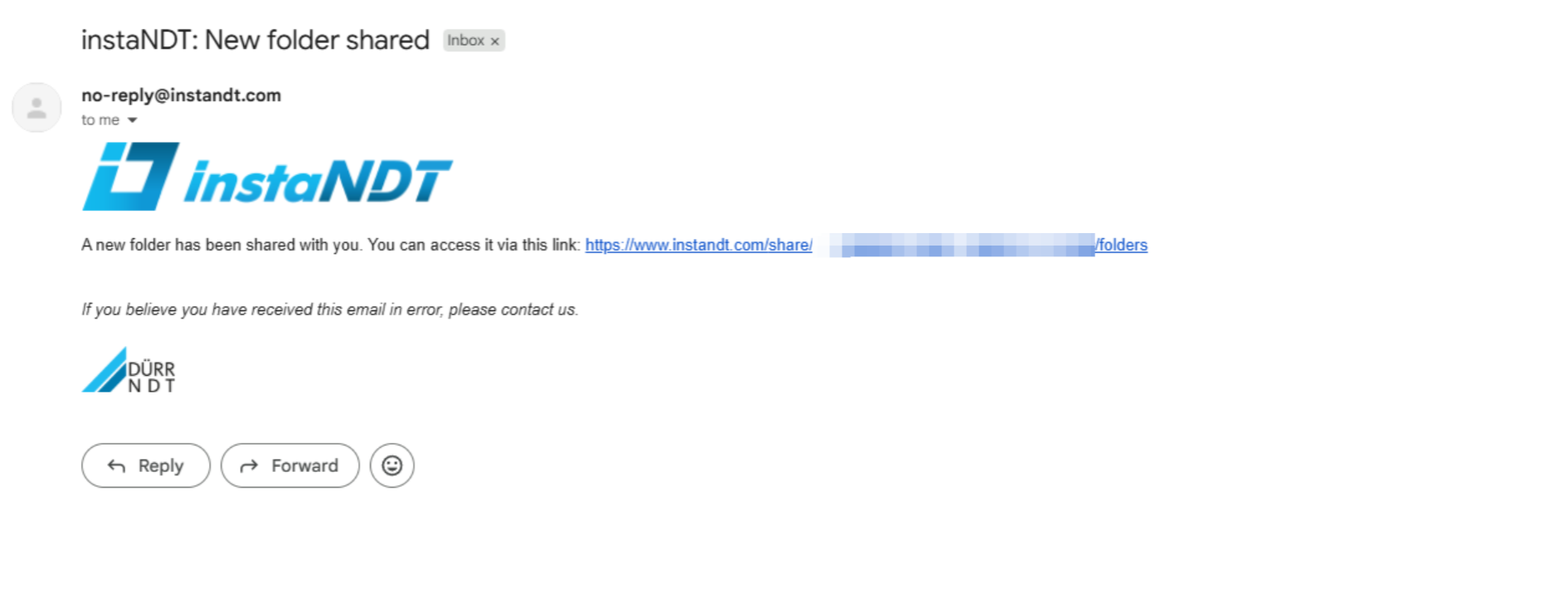
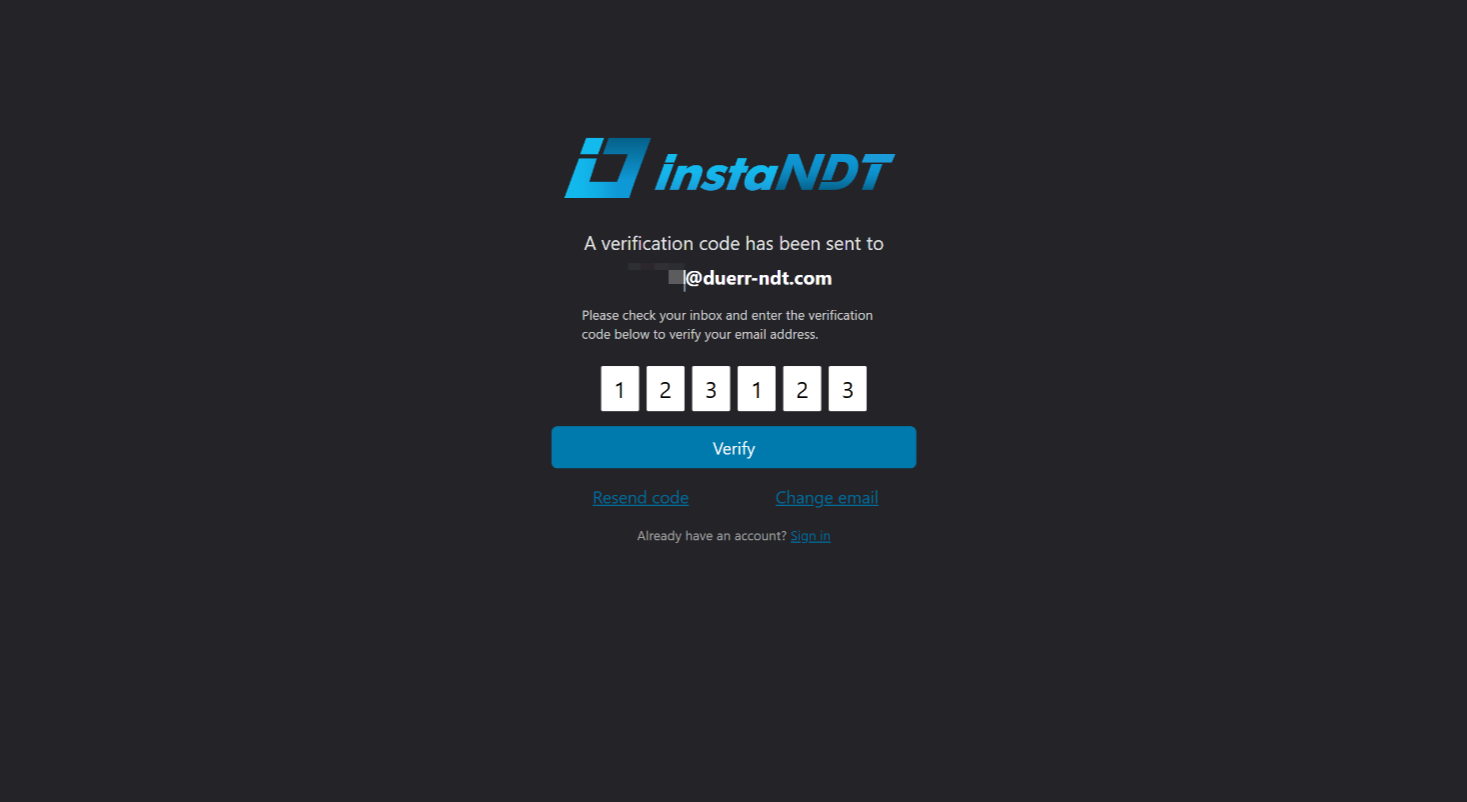
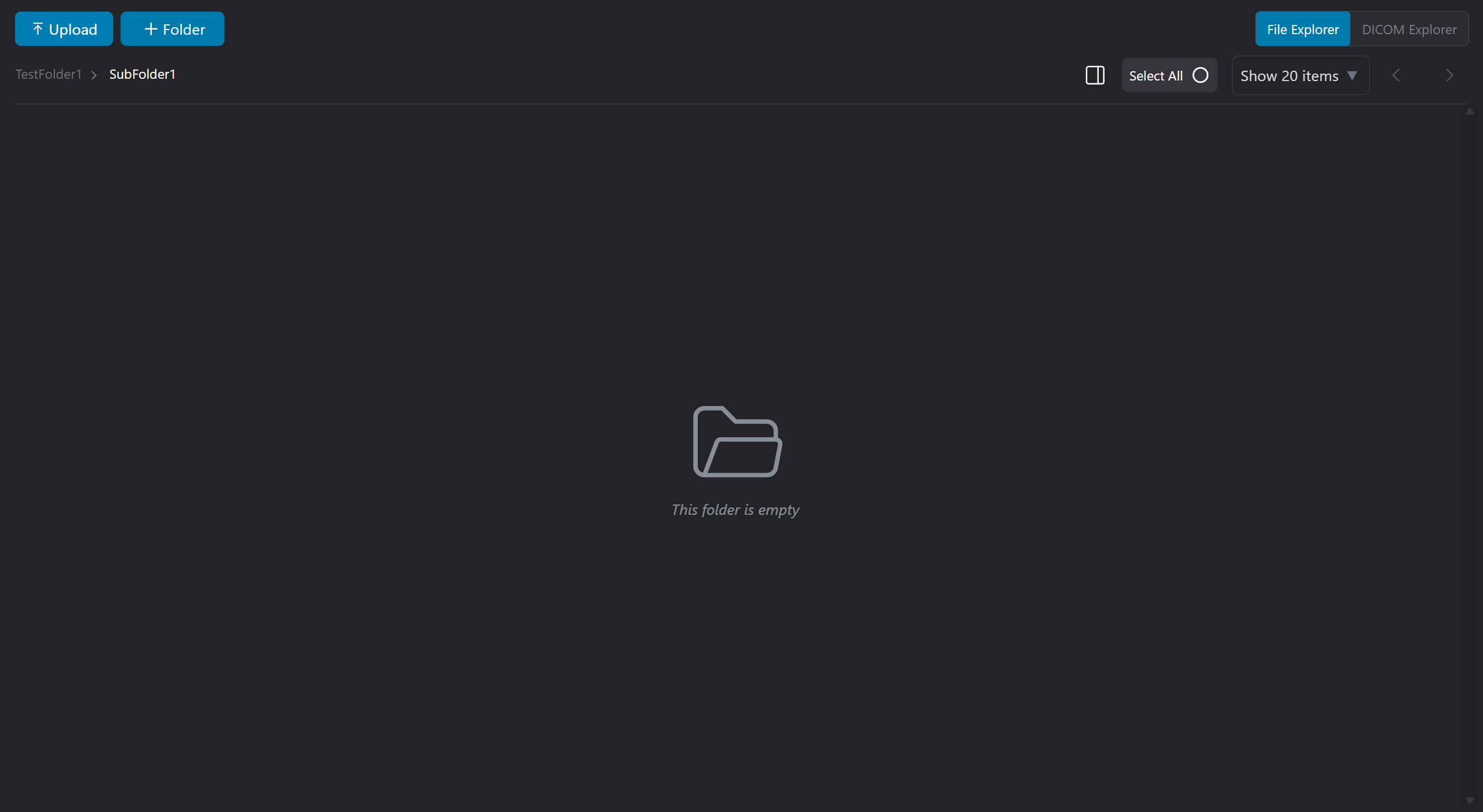
Figures 5–8. An external user accessing a shared folder using an email verification code.