Roles and Permissions
instaNDT uses Role-Based Access Control (RBAC) to manage access within an organization. Each user is assigned a role, and each role consists of a set of permissions that determine the actions the user can perform.
Organization Roles
Owner
The creator of an organization is automatically assigned the Owner role.
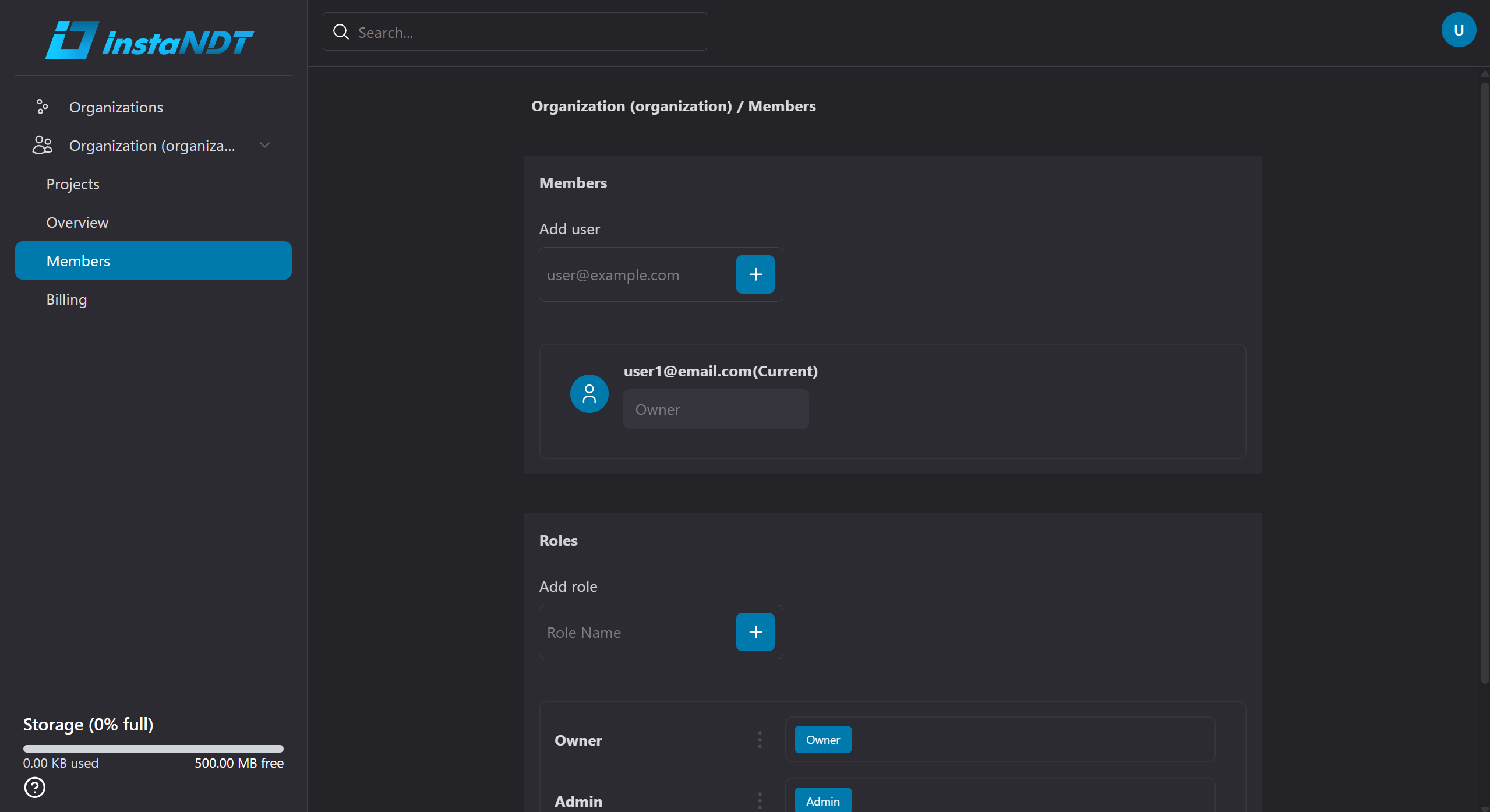
Figure 1 shows the logged in user (user1@email.com) as having the Owner role.
The Owner has unrestricted access to the organization, including:
- Managing organization settings.
- Managing projects and members.
- Creating and assigning roles.
- Deleting the organization.
- Managing administrators.
There can only be one Owner for an organization.
Admin
Administrators have nearly all organization permissions, including managing members, roles, and organization settings.
However, an Admin cannot:
- Delete the organization.
- Modify or supersede the Owner's permissions or ownership.
Permissions
| Permission | Description |
|---|---|
| Read Access | Grants access to all view-related actions within the organization. |
| Edit Organization | Modify organization information. |
| Delete Organization | Permanently delete the organization. (Owner only) |
| View User Roles | View available organization roles and their permissions. |
| Assign User Roles | Assign existing roles to organization members. |
| Create User Roles | Create custom organization roles. |
| Edit User Roles | Modify existing custom roles. |
| Delete User Roles | Remove custom roles. |
| View Organization Members | View all members of the organization. |
| Add Organization Members | Invite users to the organization. |
| Remove Organization Members | Remove users from the organization. |
| View File | View projects, folders, and media |
| Create File | Create projects, folders, and upload media |
| Delete File | Delete projects, folders, and media |
| View Project Members | View users who have access to the project. |
| Add Project Members | Grant users access to the project. |
| Edit Project Permissions | Modify a member's project permissions. |
| Remove Project Members | Remove a user's access from the project. |
Note: Users with Read Access automatically have permission to perform all view-related actions.
Example
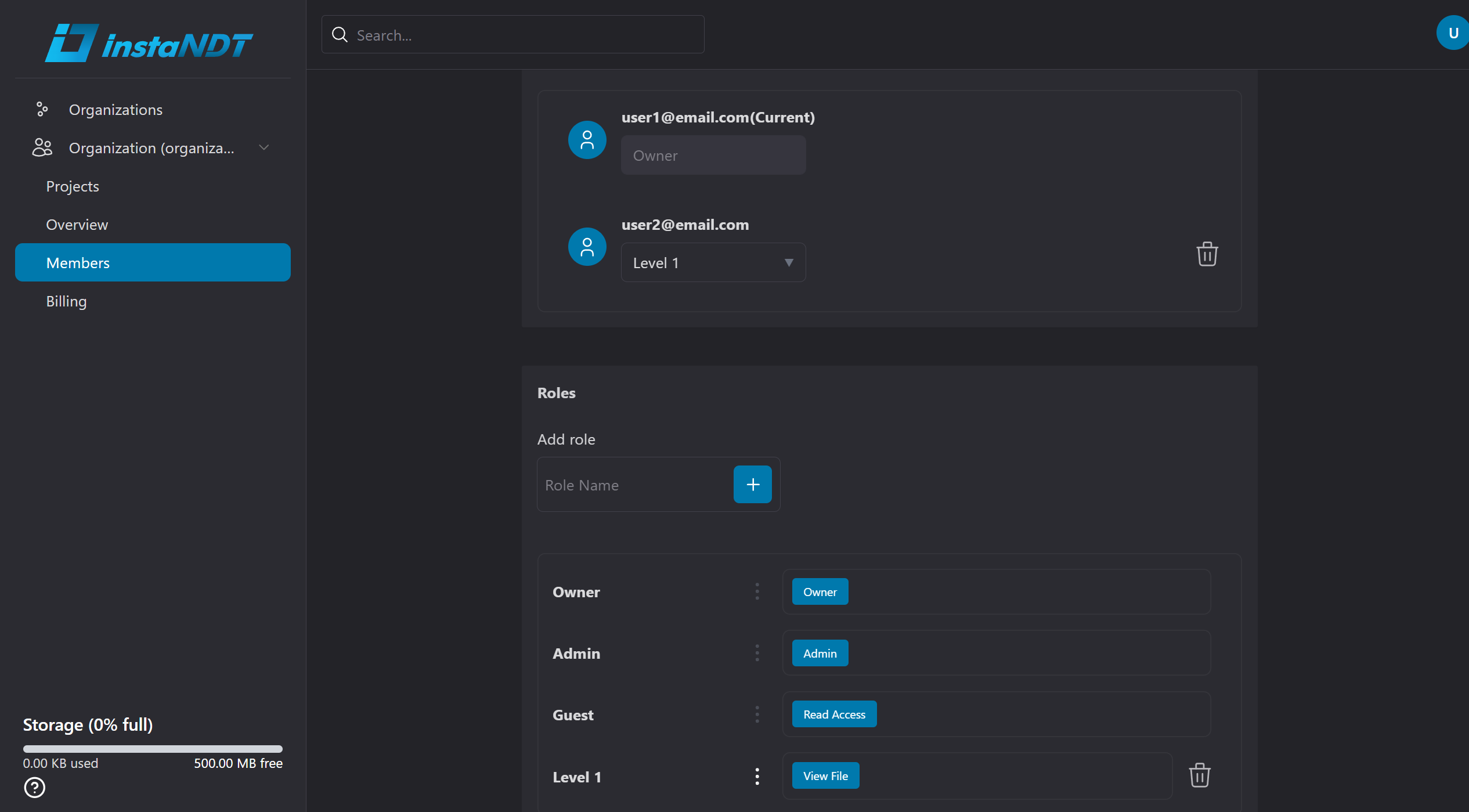
Figure 2 shows that user2@email.com has been assigned the Level 1 custom role, which includes the custom View File permission.
As a result, when user2@email.com attempts to view a media file, access is granted.
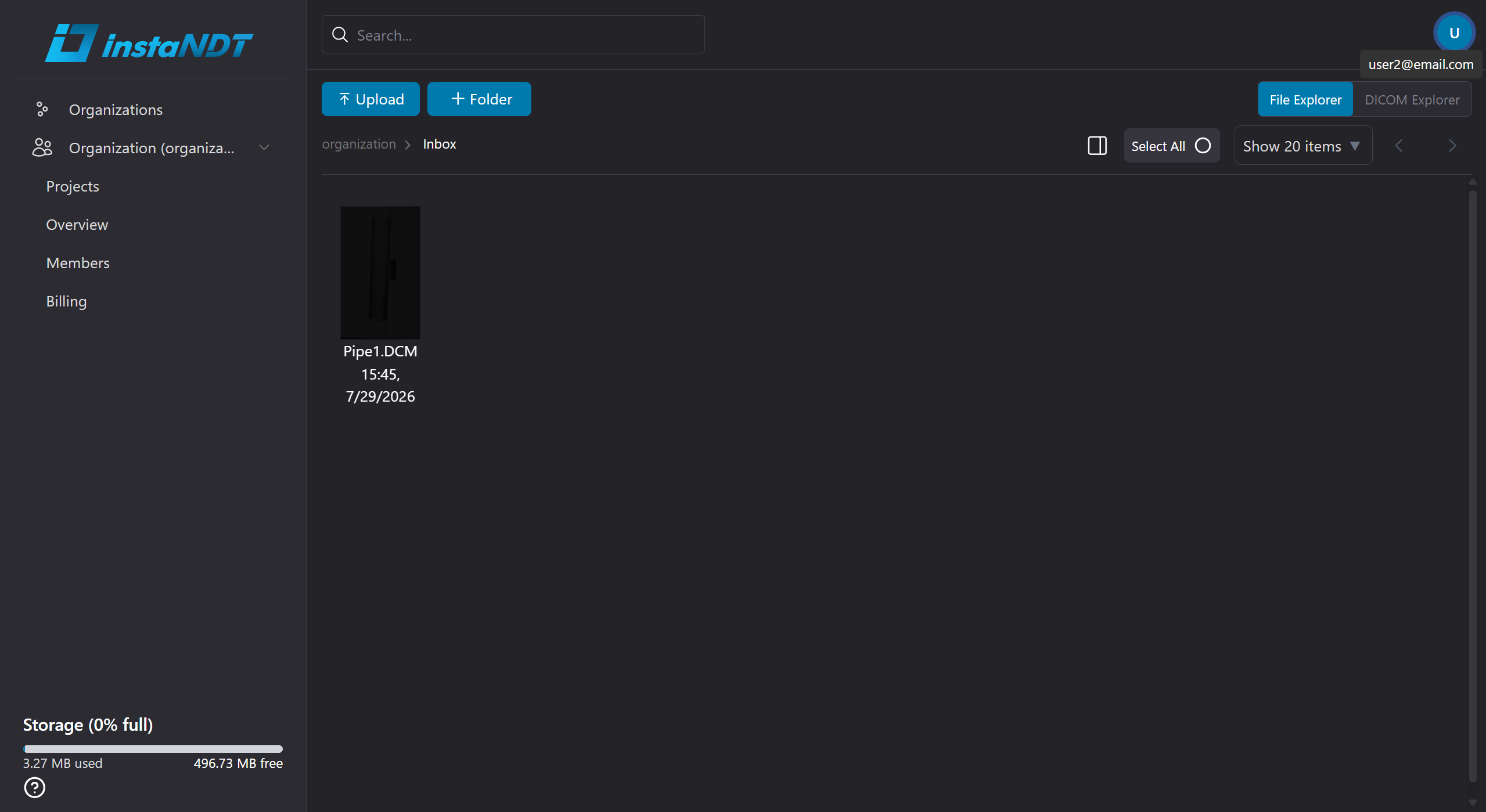
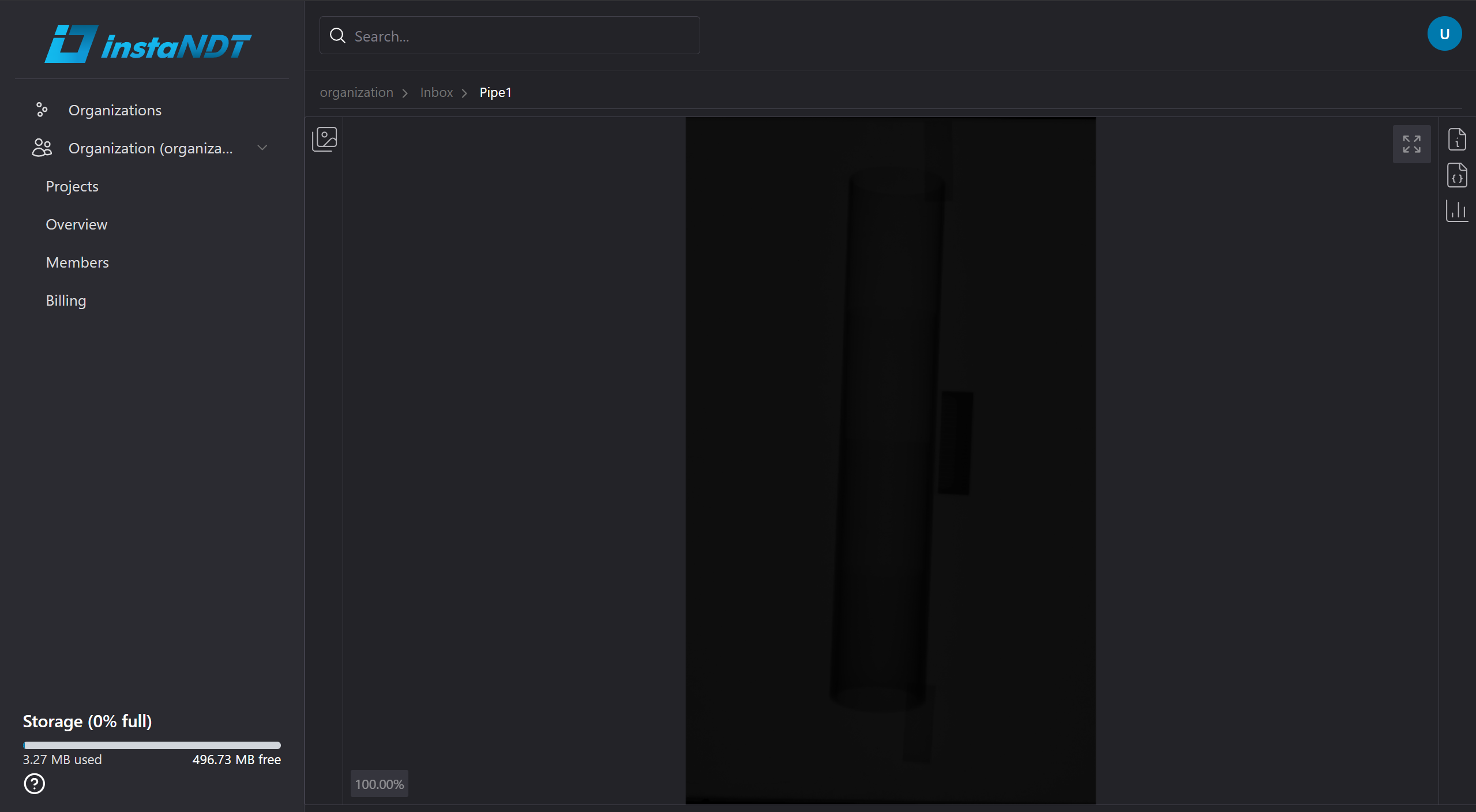
Figures 3 and 4, user2@email.com can view the media within the project or folder because the assigned custom role includes the required View File permission.
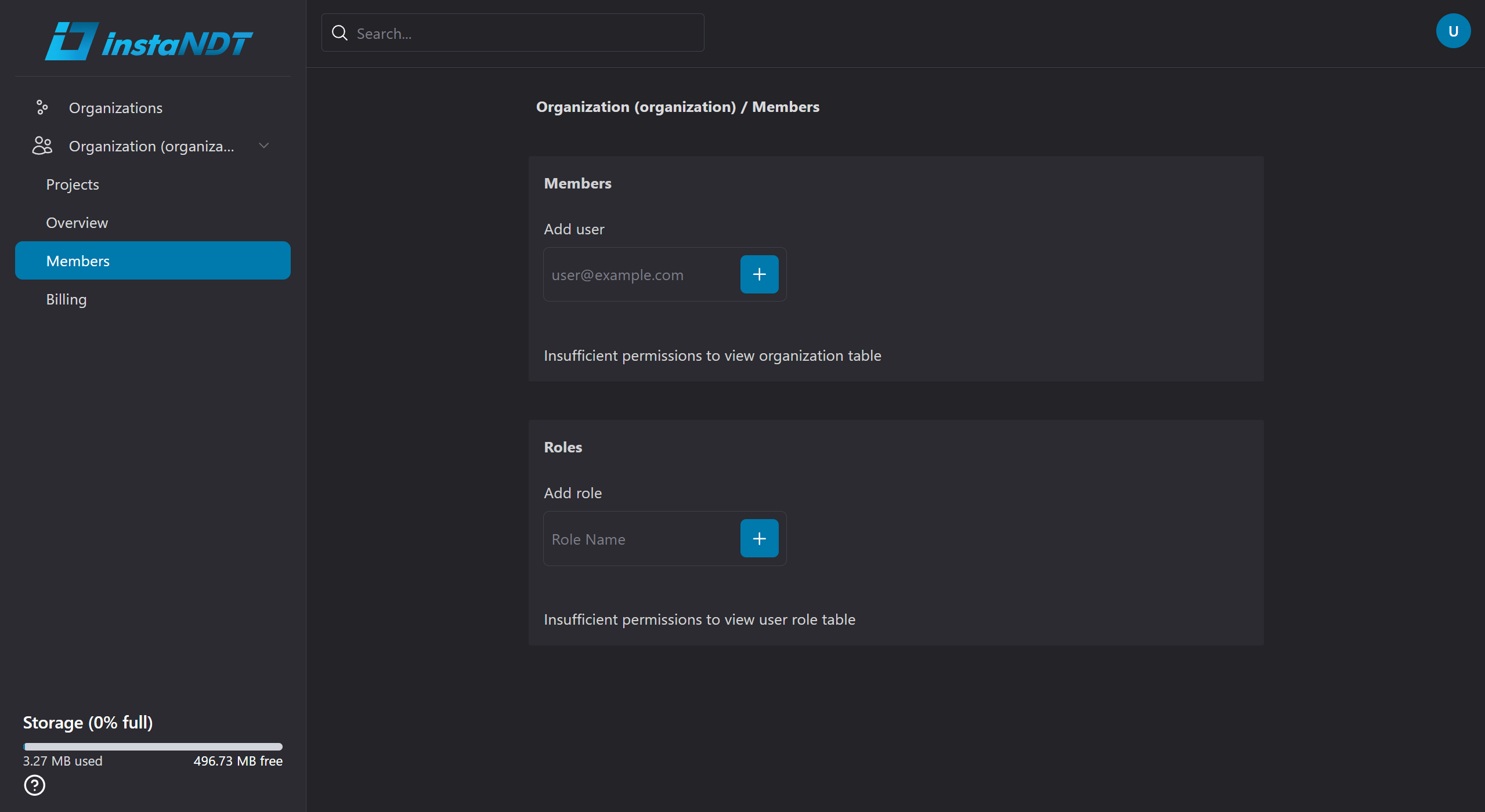
Figure 5, user2@email.com cannot view anything relating to the organization because the custom role does not include permissions pertaining to the organization.
Permission Inheritance
Permissions in instaNDT are evaluated hierarchically. By default, child resources inherit permissions from their parent. However, when permissions are explicitly assigned to a child resource, the more specific permission takes precedence.
This allows access to be granted or restricted at a finer level without affecting the rest of the hierarchy.
Example
Consider the following structure:
A user has:
- No
View Filepermission on Project A. View Filepermission on Folder A.
Although the user cannot access Project A in general, they can access Folder A and view the media contained within it because the permission assigned directly to the folder overrides the inherited permission from the parent project.
Permission Resolution
When determining whether a user can perform an action, the system evaluates permissions in the following order:
- The permission assigned directly to the resource (most specific).
- If no explicit permission exists, inherit the permission from the parent resource.
- Continue traversing up the hierarchy until a permission is found or the root is reached.
Because the closest permission always takes precedence, you can safely grant access to a specific folder or file without granting access to the entire project.